If you've built a Microsoft Power Pages portal and something about the security model never quite clicked — you're not alone. Power Pages security is its own distinct thing, parallel to but not the same as Dataverse security roles, and the concepts are subtle in ways that cause real production incidents.
This post is the reference we wish existed when we started. By the end, you'll know exactly how web roles, table permissions, and scope interact — and why the most common production data leak in Power Pages is actually a scope misconfiguration.
Two separate security models
The first thing to internalize: Dataverse has two independent security models running side by side.
- Security roles — apply to internal Dynamics 365 users. Controls what they can do in the Dynamics UI, Power Apps, or Dataverse admin surface.
- Web roles — apply to Power Pages portal visitors. Controls what external users (customers, partners, volunteers) can do in the portal.
They do not share rules. A security role grants a Dynamics user access to theincident table; that has zero effect on a customer's portal access. Similarly, a web role grants a portal contact access to cases; that contact cannot sign into Dynamics itself.
What a web role actually is
A web role is a Dataverse record (mspp_webrole) that groups portal-visitor contacts under a single label. Typical web roles:
- Anonymous Users — the default, unauthenticated visitor.
- Authenticated Users — any signed-in contact.
- Customer, Partner Admin, Internal Staff — custom roles you define.
Contacts are assigned to web roles via the adx_contactwebrole_mspp_webrole N:N table (the prefixes vary by Power Pages version — if you're on the 2026 engine it's mspp_). A single contact can hold multiple web roles.
Table permissions
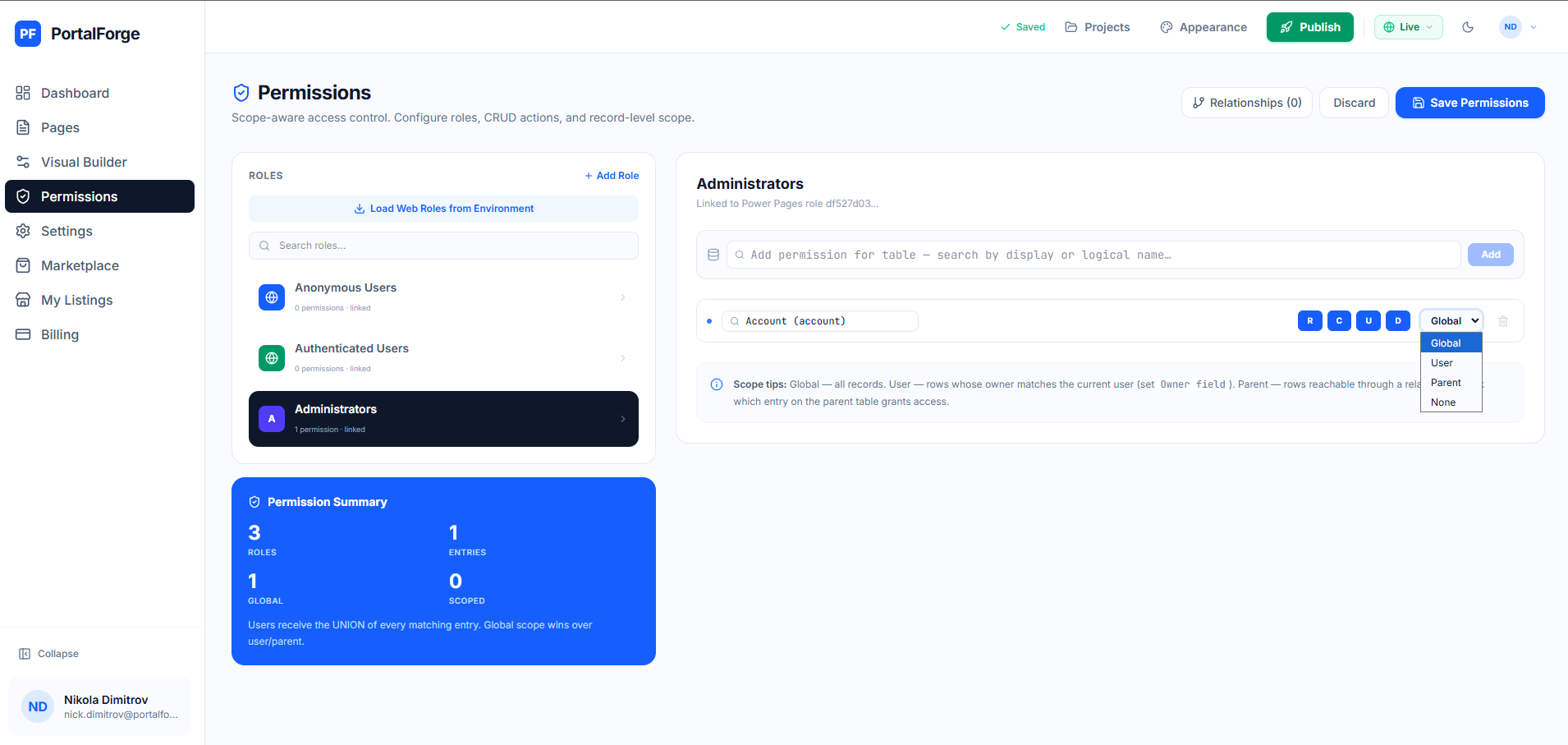
A table permission record grants a web role the right to perform CRUD operations on a specific Dataverse table. Four key fields:
- Entity Name — which table.
- Privileges — a subset of Create, Read, Write, Delete, Append, Append To.
- Scope — which rows within the table (see next section).
- Web Roles — linked via N:N to the roles this permission applies to.
A contact can read or write a row if (and only if) they hold a web role linked to a table permission that grants the required privilege and whose scope admits that row. Absence of a matching permission = access denied. Power Pages fails closed by default, which is the right behavior.
The scope choice — where most portals get it wrong
Scope is where production data leaks happen. The options:
- Global: the web role can access every row of the table. Almost always wrong for customer-facing portals — you don't want Customer A seeing Customer B's cases.
- Contact: the web role can access rows where the table's contact lookup points to the signed-in contact. For
incident, this means the contact field on the case must match the user's contact GUID. - Account: the web role can access rows where the table's parent-account lookup points to the signed-in contact's parent account. Good for account admins who should see their whole org's records.
- Parent: access is derived from another table permission along a defined relationship. Example: a user can read
incidentresolutionrecords because they can read the parentincidentrecord. - Self: the contact's own record. Rarely used.
The mistake: picking Global because it "works" during testing. It does work — for you as the builder. But any authenticated contact now reads every row. This is the mistake that makes data leak to the wrong customer.
Previewing as a specific role
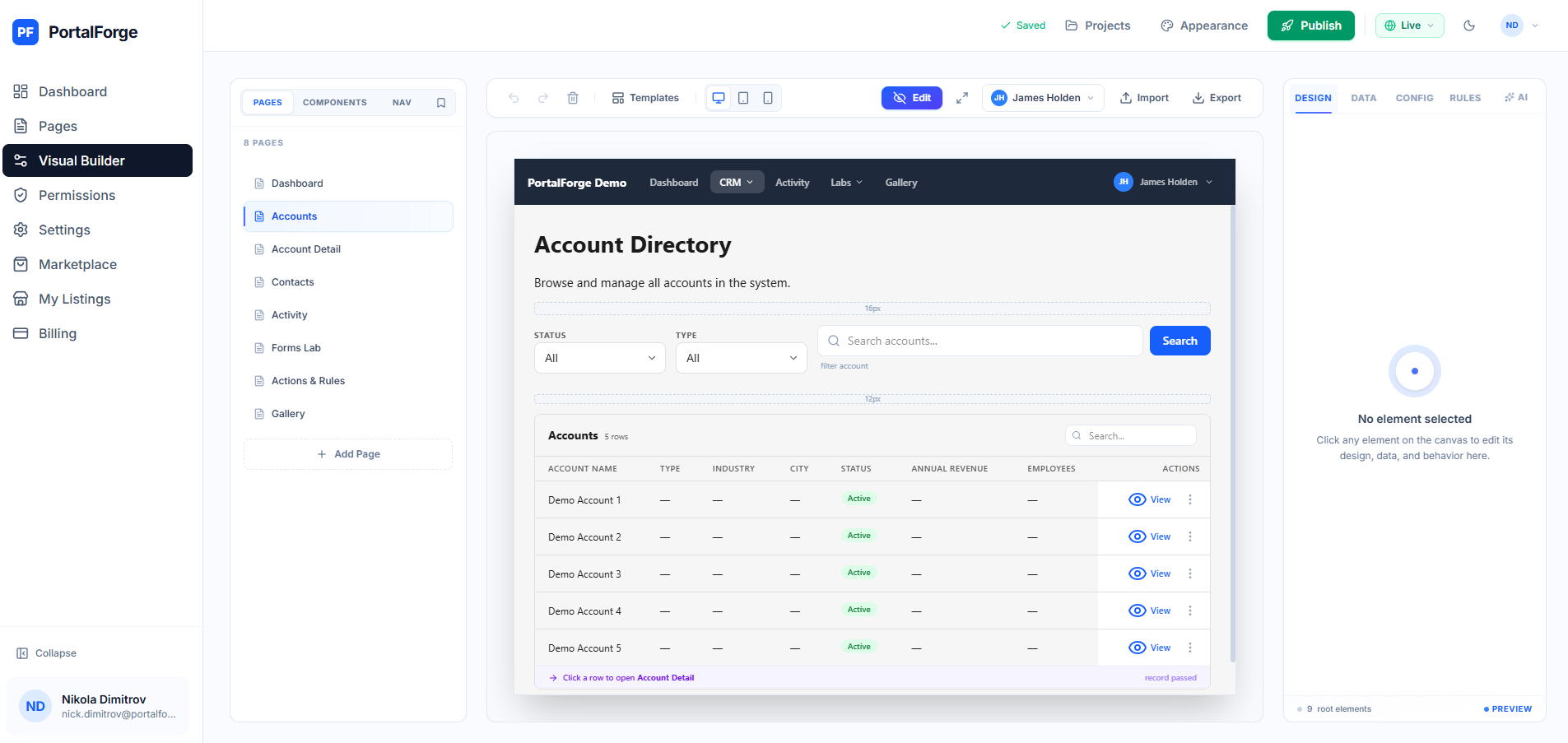
You cannot rely on your own account to test portal security. You hold Administrator or Builder roles that override normal permissions. You need to either impersonate an actual portal contact (Power Pages has a contact-impersonate feature in the admin studio) or use a portal-builder tool that simulates roles during preview.
In PortalForge, persona preview flips the canvas to render as any web role + specific contact combination. You see exactly what that user would see — filtered grids, locked forms, hidden buttons — without touching production auth. This catches 90% of scope misconfigurations before they ship.
Scope-aware permission design
Most portals should have a default deny + progressively granted access pattern:
- Start with zero table permissions.
- For each read operation the portal performs, add a table permission with the narrowest scope that works (usually Contact or Parent, not Global).
- For writes, add explicit create/update permissions with the same narrow scope.
- Audit every "Global" scope — ask "what happens if two customers share this table?"
- Test every page as every web role. If anyone can see data they shouldn't, the scope is wrong.
Common pitfalls
- Forgetting the Parent scope. Account admins needing to see their team's cases often end up with Global (wrong) when Parent with a relationship traversal is the right answer.
- Missing related-table permissions. Reading an
incidentthat has annotations or activities? Those are separate tables with their own permission rules. - Anonymous Users with Read privilege. Useful for public content pages; lethal if applied to a table with any customer data.
- Mixing the mspp_ and adx_ prefixes. The 2026 engine uses
mspp_but older environments haveadx_. Mixed deployments produce silent failures.
Keep reading
Now that you understand the security model, the next step is applying it in practice. See our end-to-end Power Pages portal guide for the full workflow, or the Dataverse portal builder guide for a wider tour of the landscape.